 |
Jungo WinDriver
Official Documentation
|
|
Jungo WinDriver
Official Documentation
|
This chapter covers the following topics:
ℹ️ Note
This chapter is applicable to Linux only, specifically targeting SoC-based architectures.
A System-on-a-Chip (SoC) integrates all the primary components of a computer (such as the CPU, memory controllers, and peripheral interfaces) into a single integrated circuit. Unlike traditional PC architectures (e.g., x86) where components like the GPU or Network Controller reside on a separate bus like PCI, SoC components are interconnected via high-speed internal buses (such as ARM’s AMBA AXI).
In the Linux kernel, devices are typically categorized by how they are discovered:
Modern SoCs often include:
By using WinDriver in this environment, you can access the memory-mapped registers and interrupt lines of these integrated components directly from user space, bypassing the complexity of writing kernel modules for every unique SoC peripheral.
WinDriver provides high-level APIs specifically designed for SoC-based platform devices. While many core WinDriver functions are universal, specific APIs exist for scanning and opening platform devices based on the definitions provided in the system Device Tree.
For tasks unique to SoC architectures, such as finding a device by its name in the Device Tree, WinDriver uses specialized Platform Device APIs. For general hardware access (I/O, interrupts, DMA), the standard High-Level APIs are used for both PCI and Platform devices.
These functions are used during the initialization phase to identify and bind to your SoC hardware:
WDC_PlatformScanDevices()WDC_PlatformGetDeviceInfo()WDC_PlatformDeviceOpen()WDC_ScanDevices() / WDC_DeviceOpen(): Versatile "wrapper" functions that can handle either PCI or Platform devices depending on the parameters provided.Once a device handle (WDC_DEVICE_HANDLE) is obtained via WDC_PlatformDeviceOpen(), you use the same high-level functions used for PCI Express to perform hardware operations:
| Function Category | Universal High-Level API (PCI & Platform) |
|---|---|
| Read/Write | WDC_ReadAddrXXX(), WDC_WriteAddrXXX(), WDC_ReadAddrBlock() |
| Interrupts | WDC_IntEnable(), WDC_IntDisable(), WDC_IntIsEnabled() |
| DMA | WDC_DMAContigBufLock(), WDC_DMASGBufLock(), WDC_DMABufUnlock() |
| Cleanup | WDC_DeviceClose() (unifies PCI, ISA, and Platform closing) |
Because SoC peripherals are memory-mapped, you can access them directly using the same methods described for PCI cards. After calling WDC_PlatformDeviceOpen(), the physical address defined in your Device Tree reg property is mapped to a user-mode virtual address. You can then use the WDC_ReadAddr / WDC_WriteAddr suite of functions to communicate with your hardware.
To enable WinDriver to manage your custom SoC platform device, you must define a node in your system's Device Tree (DTS). WinDriver will automatically detect this node, bind to the device, and allow you to begin SoC driver development immediately.
Copy the following structure into your DTS file to define your peripheral, replacing the placeholders with your hardware-specific values:
The reg property defines the physical memory space occupied by your device:
Example: For a device located at 0x40000000 with a 4KB range: reg = <0x40000000 0x1000>;
The interrupt-parent property specifies which hardware component handles the interrupt signal. Locate the label of your system's interrupt controller (e.g., &intc, &gic, or a GPIO bank like &gpio0) and reference it in this field.
The format of the interrupts field is determined by your interrupt parent. To fill this correctly:
#interrupt-cells value.<Type ID Flags>).<ID Flags>).ℹ️ Note
If your device does not use interrupts, you can safely omit the
interrupt-parent,interrupts, andinterrupt-namesfields.
Ensure the status property is set to "okay". Setting this to "disabled" will prevent the Linux kernel from probing the device and WinDriver from detecting it.
To install WinDriver for SoC architectures, follow the standard installation procedure detailed in 3.2.2.3. Installing WinDriver on ARM/ARM64 systems.
When executing the wd_arm64_install.sh script, ensure you select the ARM64 SoC Platforms option when prompted to configure the driver for your specific hardware environment.
To maintain a portable codebase that can toggle between PCI and SoC architectures with minimal changes, use the following API alternatives:
| PCI API | SoC (Platform) API |
|---|---|
WDC_PciScanDevices() | WDC_PlatformScanDevices() |
WDC_PciGetDeviceInfo() | WDC_PlatformGetDeviceInfo() |
WDC_PciDeviceOpen() | WDC_PlatformDeviceOpen() |
Alternatively, WinDriver provides unified functions that can be used for both PCI and SoC platforms. These allow you to maintain a more consistent code structure by simply updating the function arguments to match your hardware instead of switching to an entirely different function set.
WDC_ScanDevices()WDC_GetDeviceInfo()WDC_DeviceOpen()WDC_DeviceClose() (Compatible with both PCI and SoC/Platform handles without modification)To transition your driver from PCI to the SoC Platform, you must update your function calls to the corresponding Platform arguments and include the PLATFORM_API definition in your build configuration.
In CMakeLists.txt:
In Makefile:
If your hardware utilizes Programmable Logic (FPGA) with an IP core compatible with both PCI and Hard Processor Systems (HPS):
For detailed information on using DriverWizard, see 6.2. DriverWizard Walkthrough.
When you open DriverWizard, select your platform device from the list of available devices. If the device has not yet been added to the DTS, you can generate code for a virtual platform device by selecting Platform Virtual Device.
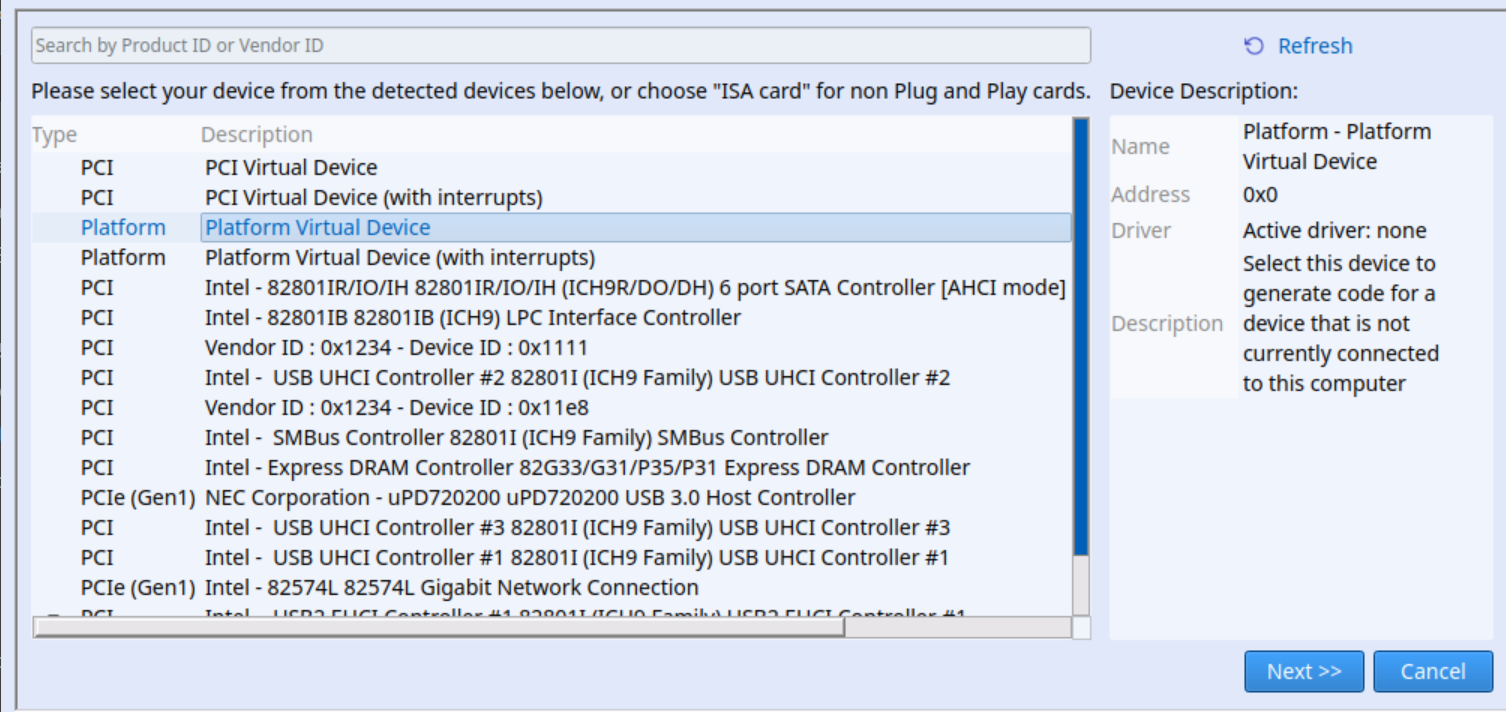
After selecting the device, diagnose it in the same manner described in 6.2.6. Diagnose your device (PCI).
After you have completed the diagnostics and verified that the device operates according to your requirements, you can generate the driver code. Follow the instructions in 6.2.9.1. Samples Or Code Generation to generate code for your platform device.
The generated code will already use the appropriate WinDriver APIs for platform devices, and the generated CMakeLists.txt file or Makefile will already include the definition required for the Platform Device API.
When generating code for either a platform device or a PCI device, DriverWizard displays an Additional Options section. In this section, you can select the following checkbox: Generate application compatible with both PCI and Platform devices
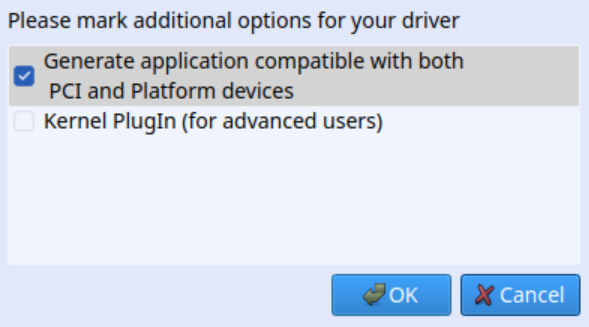
When this option is selected, the generated code includes all adjustments required for compatibility with both PCI and Platform devices. In addition, the generated project includes two build targets, so compiling the code produces two binaries: one for PCI and one for the platform device.
 1.9.7
1.9.7